One Demo Video, 12 Pieces of Content: A System to Repurpose Demo Video
TLDR
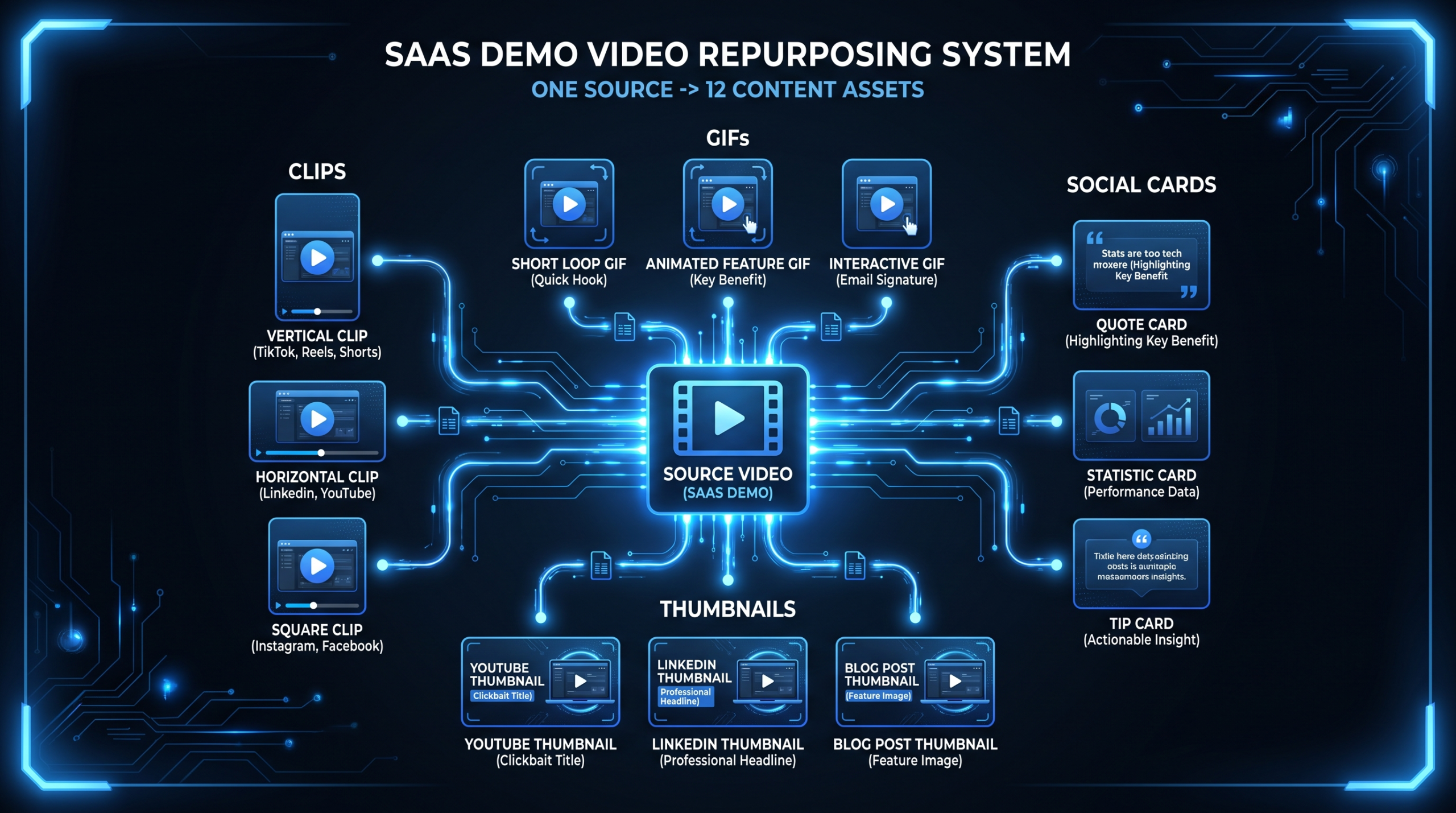
A single 3-5 minute SaaS demo video contains enough raw material for 12 distinct content assets. This article maps each asset, explains the production workflow to create all 12 efficiently, and shows how dedicated video teams structure this repurposing system at scale. Stop filming once and using once.
Table of Contents
- Why Most Teams Leave 90% of Their Demo ROI on the Table
- The 12 Content Assets From One Demo Video
- Assets 1–3: The Video Derivatives
- Assets 4–5: The GIFs
- Assets 6–7: Animated Social Cards and Email Thumbnail
- Assets 8–9: Sales Deck Slide and Onboarding Snippet
- Assets 10–12: LinkedIn Post, Landing Page Embed, and Nurture Clip
- The Production Workflow: How to Structure This System
- Timeline and Staffing
- How Agencies Structure Repurposing at Scale
- DIY vs. Agency: The Real Cost Comparison
- FAQ
Your product demo video took weeks to plan, a day to shoot, and thousands of dollars to produce. Then it went live on the website homepage and... that was it. Maybe someone clipped a 30-second version for LinkedIn. Maybe someone screenshotted a frame for the deck. But 95% of what was captured stayed locked inside one MP4 file.
This is the default for most SaaS marketing teams, and it's a significant waste. A well-produced product demo video is not a single asset — it's a content source. Every feature walkthrough, every UI highlight, every "aha moment" in the script is a standalone piece of content waiting to be extracted.
The math is simple: if you spent $8,000 producing a demo video and you get one use out of it, your cost per asset is $8,000. If you extract 12 content assets from the same footage, your cost per asset is $667. That's the leverage most teams are ignoring.
This guide gives you the system. Twelve specific assets, a production workflow to create them efficiently, and the team structure to run this at scale without creating chaos.
Why Most Teams Leave 90% of Their Demo ROI on the Table
The problem isn't effort — most marketing teams work extremely hard. The problem is structure. Repurposing a demo video requires a different kind of production thinking than creating the original. You're not producing; you're extracting and reformatting.
Three structural failures kill most repurposing attempts:
Failure 1: Treating Repurposing as an Afterthought
If you don't plan for repurposing during pre-production, you'll end up with footage that's hard to extract. The demo was scripted to flow linearly — each section leads into the next. Pulling any one section out of context produces something that doesn't stand alone. Fix this at the script stage: write the demo so each feature section has a self-contained opening and closing. This costs nothing extra in production and unlocks the entire repurposing workflow downstream.
Failure 2: No Asset Inventory
After the demo goes live, teams have no documented list of what content could be extracted. Six months later, someone on the sales team asks for a short clip showing the reporting feature. Nobody knows exactly where that footage is. An asset inventory — created at the time of editing — prevents this entirely and turns your demo into a searchable content library.
Failure 3: Insufficient Post-Production Bandwidth
Repurposing requires editing time. Social clips need captions and reframing. GIFs need to be looped cleanly. Thumbnails need motion exported as stills. If your video team is already at capacity keeping up with the original production schedule, repurposing never happens. This is where dedicated video teams provide structural leverage — when a video editing partner handles repurposing as part of an ongoing workflow, it stops being a special project and becomes a predictable delivery system.
The 12 Content Assets From One Demo Video
Here is the complete map of what one 3-5 minute SaaS demo video can produce:
The 12 Assets: Overview
Full Demo Video
Website hero, YouTube, G2/Capterra profile
Short Clip #1 — Top Feature
LinkedIn, X, YouTube Shorts, TikTok
Short Clip #2 — Problem/Solution Hook
Paid ads, retargeting campaigns
Short Clip #3 — Secondary Feature Deep Dive
Email sequences, help center embeds
GIF #1 — UI Interaction Loop
Blog posts, knowledge base articles, Intercom messages
GIF #2 — Workflow Automation Loop
Sales outreach emails, feature announcement threads
Animated Social Card
LinkedIn carousels, Twitter/X preview cards
Email Thumbnail (Animated or Static)
Nurture emails, re-engagement campaigns
Sales Deck Slide (Video Embed)
Discovery calls, proposal decks, investor presentations
Onboarding Snippet
In-app tooltips, onboarding email sequences, help center
LinkedIn Post (Video)
Native LinkedIn video with caption, subtitles burned in
Nurture Sequence Clip
Mid-funnel email drip, demo follow-up sequence
Each asset serves a different channel, a different stage of the funnel, and a different audience intent. Together, they create a consistent brand presence across every touchpoint where a prospect might encounter your product — without requiring 12 separate production budgets.
Assets 1–3: The Video Derivatives
Asset 1: The Full Demo Video
The full 3-5 minute demo is the source asset. It lives on the website hero section, on YouTube (unlisted or public), on your G2 and Capterra profile pages, and in the sales team's follow-up email. This is the authoritative version — comprehensive, structured, with proper branding and a clear CTA at the end.
What most teams get wrong here: they optimize the full demo for one placement (usually the website) and don't account for how it performs when someone watches it cold from a YouTube search or a G2 profile. Adding chapter markers and a keyword-optimized description before uploading to YouTube is a five-minute step that multiplies the discoverability of content you've already paid for.
Asset 2: Short Clip #1 — Top Feature (45–90 Seconds)
Extract the single most visually compelling moment from the demo — the feature that gets the most "wow" reaction in live calls. This becomes a standalone social clip with burned-in subtitles, formatted for both horizontal (LinkedIn, Twitter/X) and vertical (YouTube Shorts, TikTok, Instagram Reels) delivery.
The edit is minimal: cut the section cleanly so it opens mid-action rather than with setup, add a text hook in the first three seconds ("Most teams don't know this exists in [Product Name]..."), burn in the subtitles, and export in both aspect ratios. From the full demo, this is roughly two hours of post-production work — or less if the original edit was structured modularly.
This is the clip your team posts on LinkedIn natively (not as a link to YouTube — native video on LinkedIn typically sees 3–5× higher reach than shared links, per Wistia's video benchmarks). It's also the clip you hand to sales reps for their own LinkedIn activity.
Asset 3: Short Clip #2 — Problem/Solution Hook (15–30 Seconds)
This is your paid-ad cut. It opens on the problem — either a voiceover line ("If your team is still doing X manually...") or a screen recording of the friction state — and cuts to the product solving it in under 10 seconds. No feature tour, no brand story, just problem and solution compressed to the tightest possible form.
Fifteen to thirty seconds is optimal for retargeting ads on LinkedIn and Meta. If you already have website visitors in a retargeting pool, this clip converts far better than a static image because it demonstrates — rather than claims — what the product does. Expect to test 2-3 versions with different opening hooks using the same underlying footage.
Asset 4: Short Clip #3 — Secondary Feature Deep Dive (60–120 Seconds)
Every demo has a primary narrative and supporting features that don't get full time in the spotlight. Pick the secondary feature most relevant to your ICP's second-most common pain point and extract a standalone clip that covers it properly.
This clip doesn't need to compete for viral reach. Its job is to answer the question "But does it do X?" for prospects in the evaluation phase. It goes in the mid-funnel nurture email sequence (Asset 12), in the help center for new users, and occasionally as a follow-up to sales calls where the prospect asked specifically about that feature.
Assets 4–5: The GIFs
Why GIFs Still Matter in B2B SaaS
GIFs are not a consumer trend — they're a product communication tool. In B2B contexts, GIFs serve three specific functions that video cannot: they autoplay in email clients that block video embeds, they render inline in help documentation without a click, and they communicate a UI interaction faster than text in support conversations.
Intercom, HubSpot, and Notion all use GIFs extensively in their knowledge base articles because a 4-second looping GIF showing where to click is more useful than a paragraph describing it.
Asset 5: GIF #1 — UI Interaction Loop
Find the moment in the demo where the presenter clicks through the most distinctive part of the UI — the thing that signals "this product is different." Export a 3-5 second loop at 640px wide, optimized for email delivery (under 2MB). This goes into blog posts when you're explaining how to use the feature, into Intercom bot flows during onboarding, and into help center articles.
The technical note: export from your video editing software at 15fps rather than 30fps to cut file size in half without visible quality loss. Crop tightly to the relevant UI element rather than showing the full screen — the GIF should be zoomed in enough that the interaction is legible on mobile.
Asset 6: GIF #2 — Workflow Automation Loop
This is the "before and after" GIF — the demo moment where a multi-step manual process completes automatically. Export the screen recording of the automation running (not the presenter explaining it), loop it, and add a single text label overlay identifying what's happening.
Sales teams use this in cold outreach emails when describing the automation capability. A line of text saying "Our platform automates X" competes with every other email in the prospect's inbox. A 4-second GIF showing the automation actually running does something text cannot: it provides evidence. Research from Wistia and similar platforms consistently shows that email messages with animated visual content — including GIFs — generate meaningfully higher click-through rates than text-only equivalents in B2B contexts, though exact lift varies by audience and segment.
Assets 6–7: Animated Social Cards and Email Thumbnail
Asset 7: Animated Social Card
An animated social card is a 6-10 second motion graphic — not a clip from the demo itself, but a designed card that incorporates a UI screenshot or data visualization from the demo, animated to draw the eye. Think of it as the product screenshot that moves slightly: a dashboard counter ticking up, a pipeline bar filling, a notification sliding in.
This asset is purpose-built for LinkedIn carousels and Twitter/X preview cards where the first frame must stop the scroll before the user decides whether to engage. The animated social card is designed rather than edited — motion designers create it using a still frame from the demo as the source, animating elements in After Effects or a similar tool.
For a SaaS company posting on LinkedIn 3-5 times per week, a library of animated social cards built from demo footage means you always have polished, on-brand visual content without commissioning fresh assets for each post. This is a standard deliverable in VEC's SaaS video production workflow — extracting animated cards from existing demo footage rather than treating each one as a standalone project.
Asset 8: Email Thumbnail
Email clients don't autoplay video, and most don't render embedded video at all. The solution is an email thumbnail: a static or GIF image that looks like a video player (with a play button overlay) and links to the hosted video when clicked.
The email thumbnail is extracted from the demo's most visually compelling frame — typically a dashboard view showing positive metrics, or a close-up of the UI's distinctive design element. A semi-transparent play button is composited over the image. When a recipient clicks the thumbnail, they land on a Wistia or Loom-hosted version of the relevant clip.
This approach works because it bypasses email client limitations while creating the psychological expectation of video — which consistently lifts click-through rates in email campaigns, according to HubSpot's email marketing research. The thumbnail is sized at 600×338px (standard email width, 16:9 ratio) and exported as both a static PNG and a lightly animated GIF for email clients that support animation.
Assets 8–9: Sales Deck Slide and Onboarding Snippet
Asset 9: Sales Deck Slide
Your AEs are presenting to prospects who have never seen the product. A 60-90 second video clip embedded directly in the sales deck — not a link out, but a clip that plays from within the presentation — removes the context switching that interrupts momentum during discovery calls.
The sales deck clip is edited differently from the social clips: no subtitles (the presenter is live on the call), tighter cuts that skip setup and get to the "wow" moment within five seconds, and a clean ending without a CTA card (the AE provides the CTA). It's exported as an MP4 embedded in the deck file, not linked to an external player.
AEs who use product clips in their decks report that prospects engage more actively during the demo portion of calls — they ask more specific questions, retain more feature detail, and move to next steps more often. This is not a claim unique to any specific tool; it reflects a basic principle of visual learning. For more context on how video integrates into the sales cycle, see our guide on what video editing services include for B2B sales teams.
Asset 10: Onboarding Snippet
New users who complete onboarding within the first week have dramatically higher 90-day retention rates than those who don't. Video is the most efficient medium for delivering "here's how to get your first win" guidance — faster than docs, more concrete than walkthroughs, and available at the exact moment the user needs it.
The onboarding snippet is extracted from the demo section that covers the product's first meaningful action — the setup step that produces visible value. It's trimmed to 30-60 seconds, re-narrated if necessary (demo scripts often include sales language that doesn't fit onboarding context), and embedded directly in the in-app onboarding flow or day-one email sequence.
If your product has multiple user roles or use cases, consider extracting separate onboarding snippets for each — the demo footage you already have often covers multiple workflows, and a role-specific edit takes minutes to produce from existing material.
Assets 10–12: LinkedIn Post, Landing Page Embed, and Nurture Clip
Asset 11: LinkedIn Post Video
LinkedIn native video — uploaded directly to LinkedIn rather than shared as a YouTube link — reaches an average of 3-5× more people in the feed than link-based posts (this reflects general patterns in LinkedIn's algorithm behavior, which consistently favors native content). The clip should be 45-75 seconds, vertical or square format, with burned-in subtitles (85% of LinkedIn video is watched without sound).
The LinkedIn clip is not a product demo. It's a conversation starter. The structure: open with a counterintuitive observation or a question your ICP asks ("Why do most SaaS dashboards fail to tell the whole story?"), show 20-30 seconds of the product doing something interesting, and close with a comment prompt or a soft CTA ("What's your current solution for this?"). The video generates the reach; the comments generate the conversations.
Pair this clip with a written post that stands alone as a text-based argument. The video and the text reinforce each other — prospects who are visual processors engage with the video; those who prefer reading engage with the text. Combined, they perform better than either alone.
Asset 12: Landing Page Embed
If you have a dedicated demo landing page (and you should — a page where prospects can watch the demo without the distraction of your full website nav), the full demo video lives there. But the landing page embed should not simply be the full demo dropped into the hero section.
The most effective implementation creates a "chapter" experience: the full demo is the anchor, and below it, each of the three short clips is embedded separately with a label ("Watch: Reporting Dashboard Deep Dive"). This gives prospects who watched the full demo a way to revisit specific sections, and gives prospects who skipped the full demo a way to jump directly to the part most relevant to them.
Wistia's Channels product and similar tools make this straightforward to implement without custom development. The result is a landing page that functions as a video library rather than a single destination — and gives your team richer analytics on which sections of the demo generate the most engagement.
Asset 13 (Bonus — the 12th): Nurture Sequence Clip
The nurture sequence clip is a 90-120 second edit positioned specifically for prospects who attended a live demo call but didn't convert. It's not the same as the full demo — it assumes the viewer has already seen the product. Instead, it covers objection-handling content: the ROI evidence, the implementation timeline, the integration ecosystem.
This clip goes into the post-demo email sequence, typically sent 3-5 days after the call with a subject line like "Quick follow-up: what I didn't get to cover." It's also the clip that sales reps can share directly via personal email, because it addresses the specific hesitations that come up in demo calls without requiring the prospect to watch another full presentation.
The Production Workflow: How to Structure This System
Creating 12 assets from one demo is not 12 separate editing jobs. Structured correctly, it's a single organized editing workflow with clear deliverable groups. Here's how to run it:
Phase 1: Source Organization (Day 1, 2-3 Hours)
Before any editing begins, an editor reviews the full demo footage and creates a timestamped asset map: which sections correspond to which assets, where the natural cut points are, and which moments are extraction-ready versus which need rerecording or patch work. This document becomes the project brief for every editor working on the batch.
Phase 2: Long-Form Edit (Days 1-2, 6-8 Hours)
The full demo video (Asset 1) is edited first. This is the source — every other asset derives from it. The editing decisions made here (which takes to use, how to handle transitions between sections, how to mix the audio) will propagate to all downstream clips. Spending extra time on the long-form edit pays dividends across all 12 assets.
Phase 3: Clip Extraction (Days 2-3, 4-6 Hours)
With the long-form edit complete, the three short clips (Assets 2-4) are extracted from the approved timeline. Because the long-form edit already approved the takes and pacing, clip extraction is primarily a cutting exercise. Subtitles, aspect ratio variations, and hook overlays are added in this phase.
Phase 4: Motion and Design Assets (Days 3-4, 3-5 Hours)
The GIFs (Assets 5-6), animated social card (Asset 7), and email thumbnail (Asset 8) are produced in this phase. A motion designer works from a brief created in Phase 1, using approved still frames and short clips from the long-form edit as source material.
Phase 5: Channel-Specific Formatting (Days 4-5, 2-3 Hours)
The sales deck clip (Asset 9), onboarding snippet (Asset 10), LinkedIn post clip (Asset 11), landing page embed structure (Asset 12), and nurture sequence clip (Asset 13) are formatted for their specific destinations. Much of this is technical work — file format, dimensions, hosting setup — rather than creative editing.
Full Workflow Timeline
| Phase | Duration | Assets Produced | Who Does It |
|---|---|---|---|
| Source Organization | 2–3 hrs | Asset map document | Senior editor or PM |
| Long-Form Edit | 6–8 hrs | Asset 1 (full demo) | Senior editor |
| Clip Extraction | 4–6 hrs | Assets 2, 3, 4 | Editor |
| Motion & Design | 3–5 hrs | Assets 5, 6, 7, 8 | Motion designer |
| Channel Formatting | 2–3 hrs | Assets 9, 10, 11, 12 | Editor |
| Total | 17–25 hrs | 12 assets | 2–3 people |
Timeline and Staffing
For a team running this for the first time, expect the workflow to take 5-7 business days end-to-end. After the second or third iteration, with a documented process and experienced editors familiar with your brand, it typically compresses to 3-4 business days.
What This Requires In-House vs. What You Can Outsource
The decision-making stays in-house: which moments to extract, what messaging to prioritize in each clip, which objections the nurture clip should address. Your marketing team owns those choices.
The execution is where most in-house teams hit a wall. Creating 12 production-quality assets requires: a senior video editor, a motion designer, and a project manager to coordinate delivery across channels. For most SaaS companies at Series A-C, this is not a full-time workload for three dedicated people — but it's far too much for a single editor working alongside a full content calendar.
This is the structural case for outsourcing the production layer: you provide the strategy and direction, a dedicated team handles the editing, motion design, and formatting. The workflow above becomes repeatable and predictable rather than a heroic effort that burns out your internal team.
How Agencies Structure Repurposing at Scale
For SaaS companies producing one major demo update per quarter — plus ongoing product walkthroughs, feature release videos, and webinar recordings — the 12-asset system becomes a repeatable pipeline rather than a one-time project.
The Dedicated Team Model for Video Repurposing
Agencies that handle video repurposing at scale typically structure dedicated teams as follows:
- Senior editor (lead): Owns the long-form edit and clip extraction. Responsible for quality across all derived assets.
- Junior editor or motion designer: Handles GIFs, animated social cards, and channel-specific formatting. Takes the senior editor's approved clips and produces the design-layer assets.
- Project manager: Maintains the asset map, tracks delivery status for each of the 12 assets, coordinates approvals, and manages upload/scheduling for each channel destination.
This three-person structure handles one major demo repurposing project per month, plus ongoing clip requests from the sales and marketing teams. VEC structures its SaaS client teams on this model — a dedicated pod that functions as an embedded video production unit, turning raw footage and briefs into channel-ready assets without the client team managing individual tasks. See our how it works page for how these teams operate.
The Asset Library System
At scale, the asset map from Phase 1 becomes a living library document. Every demo repurposing project adds to it. When a sales rep asks for "a 30-second clip showing the reporting feature," the answer is not "we'll create one" — it's "here it is, created in the last batch." This library reduces ad-hoc video requests by 60-70% for teams that maintain it properly.
Standard library structure: organized by feature area, indexed by asset type and channel format, with metadata for each clip (duration, aspect ratio, intended channel, production date). Tools like Notion or Airtable work well for this; Wistia's media library handles the actual hosting.
DIY vs. Agency: The Real Cost Comparison
Cost Comparison: In-House vs. Dedicated Agency Team
| Approach | Monthly Cost | Assets/Month | Cost per Asset | Time to First Asset |
|---|---|---|---|---|
| DIY (1 in-house editor) | $7,000–12,000 | 8–15 | $700–900 | 1–2 weeks |
| Freelance per project | $4,000–10,000 | 6–12 | $600–1,000 | 2–4 weeks |
| Video subscription service | $3,000–6,000 | 10–20 | $200–450 | 2–4 days |
| Dedicated agency team (e.g., VEC Growth plan) | $5,000–9,500 | 20–40 | $150–350 | 24–48 hrs |
The in-house editor cost calculation includes salary, benefits, software licenses (Adobe Creative Cloud, Wistia, Frame.io), and management overhead — but not the opportunity cost of having a senior team member managing ad-hoc video requests rather than focusing on strategic work. When you factor that in, dedicated agency teams typically run 40-60% more cost-effective on a per-asset basis at this volume level.
For a detailed breakdown of how these models compare for SaaS marketing teams, see our analysis of video production agency pricing models and our pricing page.
"The question isn't whether to repurpose your demo video — it's whether you have a system to do it without burning out your team. The answer, for most Series B SaaS companies we work with, is a dedicated production partner who handles the extraction while internal marketing owns the distribution strategy."
Frequently Asked Questions
How long does it take to repurpose a demo video into 12 assets?
With an organized workflow and a two-person editing team (senior editor plus motion designer), the full 12-asset batch typically takes 17-25 hours of production time, spread across 3-5 business days. Your first iteration will take longer as the team builds familiarity with your brand style — subsequent batches from the same product footage compress to 3-4 days.
Do I need to reshoot the demo to get good repurposing assets?
Usually not — but it depends on how the original demo was scripted. If each feature section was written to stand alone (self-contained opening, clear conclusion), extraction is clean. If the demo script relies on context built up across sections, some sections will need a short re-recorded intro to work as standalone clips. This is a 30-60 minute voice-over session, not a reshoot.
Which of the 12 assets delivers the best ROI?
For most B2B SaaS companies, the LinkedIn native video (Asset 11) and the email thumbnail linking to the nurture clip (Asset 8 + 12) deliver the most measurable impact on pipeline. The LinkedIn clip generates inbound visibility; the email thumbnail-to-clip combination accelerates deals already in the funnel. The GIFs and onboarding snippet have lower immediate pipeline impact but meaningfully improve product adoption and retention metrics.
Can I repurpose a demo video that was recorded as a Zoom call or screen recording?
Yes, with caveats. Screen recordings at 1080p or higher work well for GIFs and clips — the UI is legible and the format is familiar to B2B audiences. What you'll lose is production polish: no branded lower thirds, no professional audio, no motion graphics transitions. For social clips and paid ads, you'll want to compensate with strong caption design and a clear text hook overlay. For sales deck embeds and onboarding snippets, the utilitarian format often works fine — prospects care about what the product does, not production quality at that stage.
How often should I update the repurposed asset library?
Trigger an update whenever you have a significant UI change, a major feature release, or a shift in positioning. For most SaaS companies, this means one major repurposing sprint per quarter aligned with the product roadmap. Between major sprints, the sales team's ad-hoc clip requests — "can you cut a 30-second version of the onboarding flow?" — are handled by the dedicated video team within 24-48 hours from the existing library.
Turn Your Next Demo Into 12 Assets
VEC's dedicated video teams specialize in building repurposing pipelines for Series A–C SaaS companies — turning a single demo into a full-quarter content library. Growth plan starts at $5K/month with a 90-day output guarantee.
Book a Free Strategy Call See How It Works See Pricing