Video Editing Terms Glossary: 2026
TL;DR
This glossary covers 60+ video editing terms that marketing and content teams need to communicate clearly with editors, agencies, and production partners. Each term is defined plainly — no jargon inside the definition. Use it to brief editors more precisely, review cuts with confidence, and understand what you're paying for. Jump to any section using the table of contents below.
Table of Contents
Why Marketing Teams Need This Glossary
The average marketing brief sent to a video editor or agency contains at least five terms used incorrectly — "export it in 4K," "add some color grading," "just do a quick cut" — and each one creates friction that costs time and money. When you say "make it look cinematic," your editor hears five different possible instructions.
Precise vocabulary closes that gap. It means your first-round feedback is actionable instead of interpretive, your revision count drops, and your turnaround time tightens. For teams working with an external video editing partner, the ROI of speaking the same language is immediate: fewer revision rounds, faster approvals, and final deliverables that actually match the original vision.
This glossary is organized by topic area — start with Editing Fundamentals if you're new, or jump directly to the section relevant to the conversation you're currently in.
Editing Fundamentals
These are the baseline terms you'll encounter in every video project, regardless of format or complexity.
Core Editing Actions
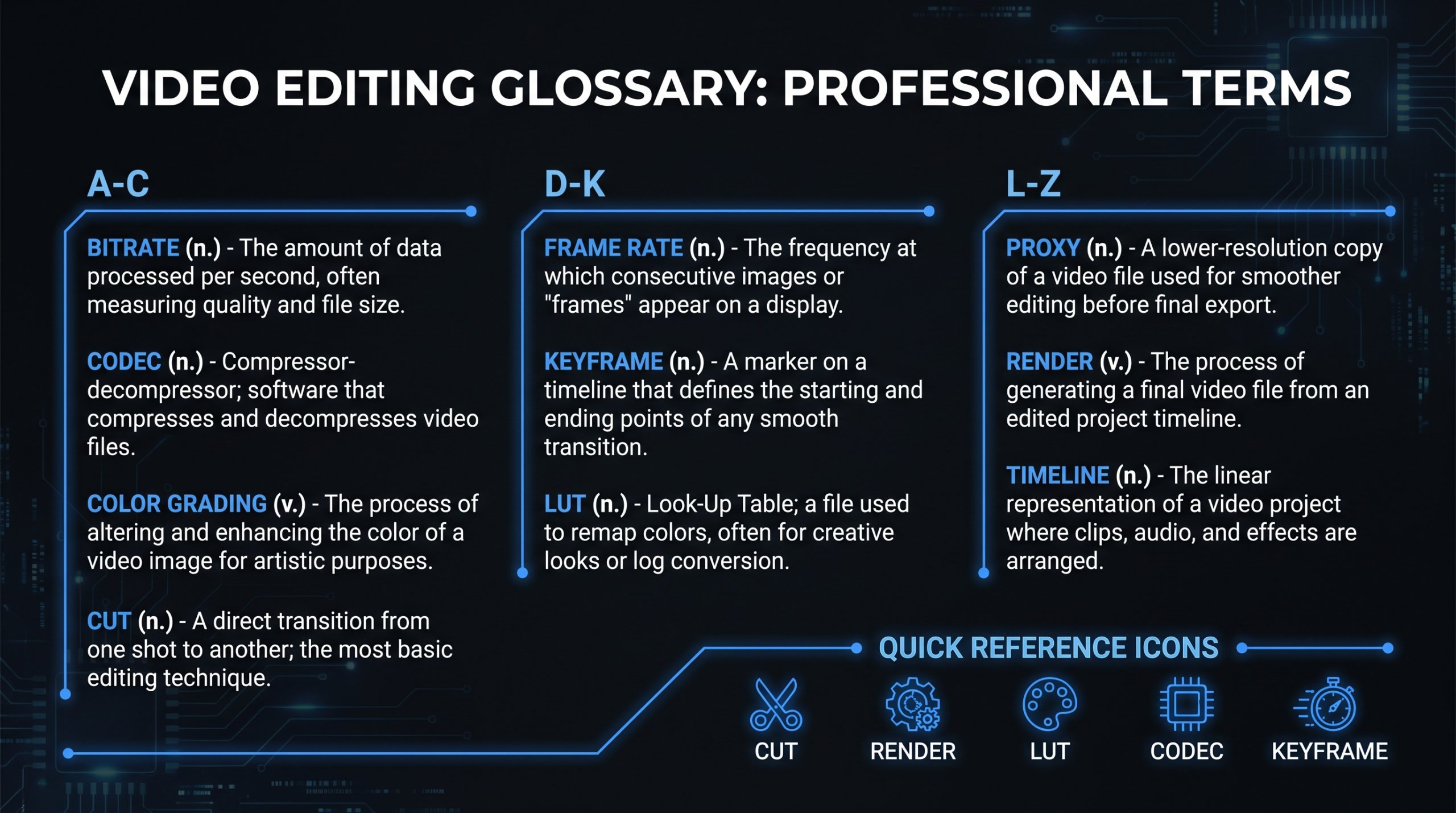
Cut
The most basic editing action: removing a portion of a clip or joining two clips back-to-back with no transition between them. A "hard cut" is an instant switch from one shot to the next. When someone says "cut this down to 60 seconds," they mean trim the total length.
Trim
Adjusting the in-point or out-point of a clip to shorten it from either end without deleting it from the project. Trimming clip A by 3 seconds at its tail means the last 3 seconds no longer play — but those 3 seconds still exist in your source media.
Splice / Insert Edit
Inserting a new clip into the middle of existing footage, pushing everything downstream on the timeline to make room. Useful for adding a B-roll shot between two talking head segments without deleting anything.
Render
The process of processing all your edits, effects, and color changes into a single, playable video file. Rendering converts your project's instructions (cuts, effects, grades) into actual pixel data. Render time depends on timeline complexity, resolution, and hardware.
Export
Saving the final rendered video as a standalone file that exists outside the editing software. Export settings determine the file format, codec, resolution, bitrate, and size. "Export to H.264 at 1080p" is a complete export instruction.
Sequence / Project
The container inside your editing software that holds all clips, edits, effects, and settings. In Premiere Pro it's called a Sequence; in DaVinci Resolve it's a Timeline; in Final Cut Pro it's a Project. Different editing programs use different names for the same concept.
B-Roll
Supplementary footage played over a voiceover or interview to visually support what's being said. If an interview subject says "we redesigned the dashboard," B-roll would show the new dashboard UI. B-roll is the workhorse of corporate and marketing video — it covers jump cuts, adds visual interest, and demonstrates claims.
A-Roll
The primary footage — usually the main interview, spokesperson, or presenter speaking directly to camera. A-roll carries the narrative; B-roll illustrates it.
Timeline & Project Terms
These terms describe how footage is organized inside an editing project. Understanding them helps you ask for the right deliverables and understand what your editor is working with.
Timeline
The horizontal workspace in your editing software where clips are arranged in order, layered on tracks (video and audio). Think of it as the storyboard that becomes your final video.
Track
A horizontal lane on the timeline. Video tracks hold visuals; audio tracks hold sound. Multiple tracks stack on top of each other — video track 2 appears above (and over) video track 1. Editors use multiple tracks to layer B-roll over A-roll, add graphics, and mix audio channels.
In-Point / Out-Point
The start (In) and end (Out) markers on a clip that define which portion will be used. Setting In/Out points on a 10-minute raw interview file lets the editor use only the selected 45-second section.
Bin / Folder
Organizational containers inside an editing project for grouping related clips. A well-organized project typically has separate bins for A-roll, B-roll, music, SFX, graphics, and exports. Good bin structure saves hours on complex multi-video projects.
Proxy
A lower-resolution, smaller copy of your original footage used for faster editing on slower computers. The editor works with proxies during the edit, then relinks to the high-res originals at export time. Proxies are invisible to the final viewer but critical for smooth editing workflow on 4K or RAW footage.
Frame Rate (fps)
The number of individual still images (frames) displayed per second of video. Common rates: 24fps (cinematic look), 30fps (standard broadcast and web), 60fps (smooth motion, used for sports and slow-mo). Mismatched frame rates between clips on the same timeline create playback stutter — always confirm fps before shooting.
Resolution
The number of pixels in each frame, expressed as width × height. Common resolutions: 1080p (1920×1080, "Full HD"), 4K UHD (3840×2160). Higher resolution means more detail but larger files and longer render times. Most marketing video is delivered at 1080p; 4K is useful when footage will be cropped for multiple formats.
Aspect Ratio
The width-to-height ratio of the video frame. 16:9 is the standard widescreen format for YouTube, Zoom, and most web video. 9:16 is vertical for Instagram Reels, TikTok, and Stories. 1:1 is square for Instagram feed. 4:5 is slightly tall for LinkedIn feed. Reframing a 16:9 video to 9:16 typically requires either cropping (losing content) or recomposing the shot.
Cuts, Transitions & Pacing
The way one shot connects to the next shapes the energy and feel of your video. These terms let you describe pacing and emotional tone precisely in your feedback.
Jump Cut
An edit between two shots of the same subject where the camera angle or the subject's position changes abruptly. Jump cuts can look jarring when accidental, or dynamic and energetic when intentional (common in YouTube vlogs and talking-head content). Good B-roll covers unwanted jump cuts.
L-Cut (Split Edit)
The audio from shot A continues playing while the visuals have already cut to shot B. You hear what the interview subject said before you see their face. L-cuts create a natural, conversational feel and are one of the most common edits in professional interview-based content.
J-Cut
The audio from shot B starts playing before the visuals cut to shot B. You hear the next clip before you see it. J-cuts create anticipation and smooth transitions. Combined with L-cuts, they make a video feel professionally paced rather than choppy.
Match Cut
A cut between two shots that share a visual similarity — same shape, motion, or framing — to create a seamless or thematically meaningful transition. Classic example: a spinning clock face cuts to a spinning tire. Used in brand films and narrative content to convey meaning.
Cross-Dissolve (Fade)
A transition where shot A gradually fades out as shot B fades in. Cross-dissolves signal the passage of time or a gentle topic shift. Avoid using them between every cut — overused dissolves make corporate video feel dated and slow.
Wipe
A transition where shot B slides or pushes shot A off-screen in a defined direction. Wipes are common in tutorial and instructional content but can look overly mechanical in polished brand or marketing video.
Montage
A series of short clips cut together in rapid succession to compress time, build energy, or show a progression. Product launch videos commonly use a montage to show features quickly. Good montages have a rhythm that matches the music beat.
Pacing
The rhythm of the edit — how long each shot stays on screen before cutting. Fast pacing (short clip duration) creates urgency and energy. Slow pacing creates contemplation or gravitas. Pacing should match the emotional objective of the video, not just the editor's preference.
Color Grading Terms
Color grading is one of the most misunderstood parts of post-production for non-editors. These terms let you give precise color feedback instead of vague direction like "make it pop."
Color Correction vs. Color Grading
Color correction fixes technical problems — balancing exposure, removing color casts, matching footage shot on different cameras. Color grading is the creative step — applying a look, tone, or mood to the corrected footage. Correction comes first; grading follows. Many editors include basic correction but charge extra for creative grading.
LUT (Look-Up Table)
A preset filter that transforms color values in a predictable, repeatable way. Applying a LUT to multiple clips instantly makes them look consistent. LUTs can emulate film stocks, match a specific brand aesthetic, or correct for a camera's native color profile. LUTs are not a substitute for proper color correction — garbage in, garbage out.
White Balance
The process of neutralizing color casts caused by different light sources. Tungsten light is warm (orange); fluorescent light is cool (green). Incorrect white balance makes skin tones look wrong. Set in-camera or corrected in post. "The footage looks too warm" = the whites look orange, not neutral white.
Exposure
The overall brightness of the image. Overexposed footage is too bright (highlights "blown out," no detail in bright areas). Underexposed footage is too dark. Editors can recover some exposure errors in post, but severe over- or underexposure degrades quality permanently.
Saturation
The intensity of colors in the image. High saturation = vivid, punchy colors. Low saturation = muted, desaturated, almost monochrome. Many modern brand videos intentionally desaturate slightly for a premium, clean look. "Can you pull back the saturation slightly?" is a precise, actionable instruction.
Color Space
The defined range of colors a camera or display can capture and show. Common color spaces: Rec.709 (standard for HD web and broadcast), Rec.2020 (HDR), DCI-P3 (cinema). RAW and Log footage must be converted to the right color space before grading. Mismatched color spaces cause footage to look washed out or oversaturated.
Log Footage
A flat, low-contrast recording profile that preserves maximum dynamic range in the file — it looks "washed out" deliberately so colorists have more data to work with. Log footage requires a LUT or manual grade to look normal. Brands that shoot in Log and then ask editors to "just deliver the raw files" will receive footage that looks broken.
Audio & Sound Design Terms
Audio is half the video — often the half that determines whether viewers stay or leave. These terms help you give meaningful feedback on sound quality and mix.
Mix
The process of balancing multiple audio tracks — dialogue, music, sound effects — so they work together at appropriate relative levels. A "mixed" video has voiceover audible above the music, sound effects that accent rather than distract, and consistent volume throughout.
Music Bed
Background music that plays underneath dialogue or voiceover. A good music bed sits at roughly 20-30% of the dialogue volume so it supports atmosphere without competing for attention. "Lower the music bed" is precise; "make the music quieter" is the same instruction.
SFX (Sound Effects)
Non-music audio elements — button clicks, whooshes, notification sounds, ambient room tone, or environmental sounds. SFX can make UI demo videos feel polished and help guide viewer attention to the right element at the right moment.
Voiceover (VO)
Audio narration recorded separately from the video footage, then synced to the edit. Voiceovers are common in explainer videos, tutorial content, and product demos where showing and narrating at the same time is clearer than having a presenter on screen. See our breakdown of what's included in professional video editing services for how VO fits into a typical production scope.
Room Tone
A 30-60 second recording of the ambient sound in the filming location with no one speaking. Editors use room tone to fill gaps between dialogue — without it, cuts between lines have a jarring silence. Always record room tone on-location before wrapping a shoot.
Sync
Aligning audio and video so they match — lips moving match the words spoken, on-screen actions match their sounds. Modern editing software does this automatically from a clapboard sync or audio waveform match, but complex multi-camera shoots still require manual sync checking.
Noise Reduction
A post-processing step that removes background hiss, hum, or environmental noise from dialogue recordings. Modern AI-based noise reduction tools (iZotope RX, DaVinci Fairlight) can dramatically improve footage recorded in imperfect conditions, but they cannot fully rescue very noisy recordings.
Lufs (Loudness Units Full Scale)
The standardized measurement for audio loudness used by streaming platforms. YouTube normalizes uploads to around -14 LUFS; podcasts commonly target -16 LUFS; broadcast TV uses -23 LUFS. Videos not normalized to platform standards get auto-adjusted on playback, which can cause inconsistent volume compared to surrounding content. For a deep-dive on video production best practices including audio, Wistia's video learning center covers how streaming platforms handle loudness normalization and encoding standards.
Video Formats, Codecs & Delivery
Format and codec confusion causes more delivery problems than any other technical issue in post-production. These definitions let you specify deliverables correctly.
Codec
The compression algorithm used to encode and decode video data. Short for coder-decoder. H.264, H.265, ProRes, and DNxHD are all codecs. The codec determines file size, quality, and compatibility. Two files can be the same resolution but have very different quality and size depending on their codec.
Container (File Format)
The file wrapper that holds video, audio, and metadata. .MP4, .MOV, .MKV, and .AVI are containers, not codecs. An MP4 container can hold H.264 or H.265 video. A MOV container can hold H.264, ProRes, or other codecs. "Send it as MP4" specifies the container; "send it as H.264 MP4" specifies both container and codec.
Bitrate
The amount of data processed per second of video, expressed in Mbps (megabits per second). Higher bitrate = more data per second = better quality and larger file. YouTube's recommended encoding settings target 8 Mbps for 1080p60 uploads. A 4K ProRes export might be 700+ Mbps — a large file appropriate for archiving but impractical for web delivery.
H.264
The most widely compatible video codec. Plays on virtually every device, platform, and browser. The standard for web delivery, social media uploads, and email video. Good quality-to-size ratio at typical delivery resolutions. Most YouTube and LinkedIn videos are H.264 MP4 files.
H.265 (HEVC)
The successor to H.264 — similar quality at roughly half the file size, or significantly better quality at the same file size. Limited by older device/browser compatibility. Increasingly common for 4K delivery and streaming. Not universally supported for web embedding yet.
ProRes
Apple's high-quality, large-file codec used for editing and archiving. ProRes files are large (100-700+ Mbps) but edit smoothly and maintain quality through multiple generations of export. Not for web delivery — always transcode to H.264 or H.265 before uploading. If your editor delivers a ProRes file, they're giving you an archive-quality master.
Motion Graphics & Animation Terms
Motion graphics make the difference between a talking head video and a polished marketing asset. These terms help you brief and review animated elements.
Lower Third
A graphic element that appears in the lower portion of the frame — typically displaying a speaker's name and title ("Sarah Chen / Head of Marketing"). Lower thirds are standard in interview-based content, webinars, and event recordings. They should match your brand style guide.
Keyframe
A point in time on the timeline where an animation value is defined. To animate a graphic from off-screen to on-screen, you set a keyframe at the start position (off-screen) and another at the end position (on-screen). The editing software fills in the motion between. All animation in video editing is keyframe-based.
Motion Path
The trajectory an animated element follows between keyframes. A logo that slides in from the left follows a horizontal motion path. Motion paths can be straight, curved, or complex depending on keyframe settings.
Easing (Ease In / Ease Out)
Controlling the acceleration of animated elements so they start or end gradually rather than at a constant speed. Ease in = element starts slowly and accelerates. Ease out = element decelerates as it reaches its destination. Easing makes animation feel natural and polished; linear motion (no easing) looks robotic.
Kinetic Typography
Animated text that moves, grows, fades, or reacts to rhythm — usually synchronized to a voiceover or music beat. Common in product teasers, social media ads, and explainer video intros. Not the same as a static title card or subtitle.
Compositing
Layering multiple visual elements — footage, graphics, text, and effects — to create a combined image. Green screen (chroma key) work is compositing. Adding a product interface as an animated overlay on real footage is compositing. Compositing is more labor-intensive than straight editing and is typically scoped separately.
Green Screen (Chroma Key)
Filming a subject in front of a solid-color background (usually green or blue), then replacing that background with a different image or video in post. Requires even lighting on the green screen and clean separation between subject and background for a convincing result. Poorly lit green screen footage is difficult or impossible to key cleanly.
Team & Workflow Terms
These terms describe the stages and roles in a professional video production workflow. They matter when you're outsourcing video editing and need to understand what you're approving at each stage.
Rough Cut
The first assembled version of an edit — all the right content in roughly the right order, at approximately the right length, but not yet polished. Color, sound mix, and graphics are minimal or absent. A rough cut is for structural feedback: "Is the story right? Is the pacing right?" Not for final approval.
Fine Cut
A refined version of the edit where picture is locked (or nearly locked) and attention turns to detail — tightening timing, cleaning audio, adding or refining B-roll. The fine cut is the last stage before full post-production (color, mix, graphics).
Picture Lock
The point at which the edit is approved and no further structural changes will be made. Once the picture is locked, color grading, audio mixing, and motion graphics work begins. Requesting major edits after picture lock disrupts the downstream workflow and typically incurs additional fees.
Offline Edit
Editing using proxy or compressed footage for speed, before relinking to the high-resolution master files. The "offline" refers to working with copies, not the originals. Most professional editing workflows use an offline edit phase when dealing with large-format media (4K, 6K, RAW).
Online Edit
The final stage where the edit is conformed using the highest-quality original media for export. Online edit happens after picture lock — the cut structure is imported and relinked to masters for the final color grade, mix, and output.
Deliverables
The specific files you receive at the end of a project. "Deliverables" should always be specified clearly in scope before production begins: resolution, aspect ratios, codecs, naming conventions, and format variants. "A 90-second product video" is not a deliverable specification. "A 90-second 1080p H.264 MP4 at -14 LUFS, plus 9:16 and 1:1 social cuts" is.
Revision Round
A structured feedback cycle where the client reviews a cut, provides consolidated notes, and the editor implements changes. Most video production contracts specify a fixed number of revision rounds included in the price. Providing contradictory feedback, re-opening previously approved sections, or requesting out-of-scope changes within a round creates confusion and increases cost. See how VEC structures revision workflows at our pricing page.
Format & Codec Comparison Tables
Two of the most common sources of confusion in video delivery are codec choice and frame rate selection. These tables give you a clear reference for the most common decisions.
Codec Comparison: Which Format for Which Use Case
Codec Comparison by Use Case
| Codec | File Size (1hr, 1080p) | Quality | Best For | Compatibility |
|---|---|---|---|---|
| H.264 | ~4–8 GB | Good | Web delivery, YouTube, LinkedIn, email | Universal |
| H.265 (HEVC) | ~2–4 GB | Very Good | 4K web delivery, mobile delivery | Broad but not universal |
| ProRes 422 | ~80–200 GB | Excellent | Editing, archive master | Mac/Apple native; limited elsewhere |
| ProRes 4444 | ~200–400 GB | Broadcast | VFX, compositing, broadcast master | Professional software only |
| DNxHD / DNxHR | ~60–180 GB | Excellent | Editing, archive (Avid/Windows-friendly alternative to ProRes) | Professional software only |
Frame Rate Comparison: Which fps for Which Content Type
Frame Rate by Content Type
| Frame Rate | Look & Feel | Best For | Notes |
|---|---|---|---|
| 24fps | Cinematic, film-like | Brand films, testimonials, narrative video | Standard for film; some motion blur at fast movement |
| 25fps | Cinematic | European broadcast, international delivery | PAL standard; used when content may air on EU TV |
| 30fps | Natural, broadcast-clean | Corporate video, webinars, YouTube, LinkedIn | NTSC standard; most common for web marketing video |
| 60fps | Smooth, hyper-real | Sports, product demos, screen recordings | Creates very smooth motion; can look "cheap" for narrative content |
| 120fps+ | Slow-motion | Shot at high fps, played back at 24–30fps for slow-mo effect | Requires sufficient light; large file sizes |
Need help specifying deliverables for your next video project? Our video editing services breakdown covers exactly what to ask for and how to structure your brief. For context on what professional editing services typically cost, our video editing cost per minute guide provides real market benchmarks.
Frequently Asked Questions
What is the difference between a cut and a trim in video editing?
A cut removes a clip entirely or joins two clips together with no transition. A trim adjusts the start or end point of a single clip to make it shorter, without deleting it from the project. You cut a scene out; you trim a clip to shorten it from either end.
What does "render" mean in video editing?
Rendering is the process of converting your editing software's instructions — cuts, effects, color grades, transitions — into actual pixel data in a playable video file. You render (or export) when you're ready to deliver the final file. Render time depends on the complexity of your timeline, your resolution, and the power of your computer.
What is a LUT in video editing?
A LUT (Look-Up Table) is a preset that transforms the colors of your footage in a defined, repeatable way. LUTs can make footage look like a specific film stock, match a brand's visual aesthetic, or correct for a camera's native color profile. They're applied during color grading — not a substitute for color correction, but a fast way to apply a consistent look across multiple clips.
What is picture lock and why does it matter for clients?
Picture lock is the point where the edit structure is finalized and approved — no more structural changes. After picture lock, color grading, audio mixing, and motion graphics work begins. Clients who request major edits after picture lock disrupt the entire downstream workflow, which is why most professional video contracts specify that structural changes after picture lock are billed as additional work.
What is the difference between a rough cut and a fine cut?
A rough cut is the first assembled version of an edit — content in the right order, approximately the right length, minimal polish. Review it for story structure and pacing only. A fine cut is the polished version before picture lock — timing refined, B-roll added, audio cleaned. Giving detailed color feedback on a rough cut wastes everyone's time; save that for the fine cut or after picture lock.
What is B-roll and how much do I need?
B-roll is supplementary footage that plays over narration or interview audio to visually illustrate what's being said. For a 2-minute interview-based video, plan on at least 3–5 minutes of usable B-roll to cover jump cuts and add visual variety. The more product demos, processes, or specific claims your video makes, the more B-roll you'll need to support them.
Ready to Put These Terms to Work?
VEC provides dedicated video editing teams for B2B SaaS companies — senior editors who already speak this language fluently. Our Growth, Core, and Scale plans start at $5K/month with a 90-day output guarantee: double your video output or month 4 is free.
Book a Free Strategy Call See How It Works See Pricing