Video File Formats for Web: A Quick Guide
For web delivery, MP4 with H.264 encoding is the correct default — it works in every major browser, every operating system, and every video player without configuration or plugins. If file size is a priority and your audience uses modern browsers, WebM with VP9 encoding delivers equivalent visual quality in roughly 20–30% less data.
TL;DR — Web Video Format Cheat Sheet
- Best all-around format: MP4 / H.264 — universal browser support, works everywhere
- Best for file size: WebM / VP9 — 20–30% smaller than MP4 for equivalent quality
- Best for maximum compression: WebM / AV1 or MP4 / H.265 — up to 50% smaller than H.264, but encode time is higher
- Avoid on the web: AVI, MKV, FLV, WMV — large files, no native browser support
- For SaaS product demos and landing pages: MP4 / H.264 under 10 MB; use managed hosting (Wistia, Vimeo) for analytics
Table of Contents
- Container Formats vs. Codecs: The Key Distinction
- MP4 (H.264): The Universal Web Standard
- WebM (VP9 and AV1): The Modern Alternative
- MOV, AVI, MKV: Why These Don't Belong on the Web
- Web Video Format Comparison Table
- Video Format by Use Case
- How to Compress Video for Web
- Video Hosting and Format Implications
- Frequently Asked Questions
Container Formats vs. Codecs: The Key Distinction
Understanding web video formats starts with knowing the difference between a container and a codec — two concepts that are frequently, and expensively, confused.
What a Container Does
A container (such as MP4, WebM, or MOV) is a wrapper that holds the video stream, audio stream, subtitles, and metadata in a single file. It defines the file format and the extension you see — but it does not determine how the video is compressed. Think of the container as the box and the codec as the compression method used to pack what goes inside.
What a Codec Does
A codec (such as H.264, H.265, VP9, or AV1) is the algorithm that compresses and decompresses the actual video data. The codec determines file size and quality at any given bitrate — not the container. The same MP4 container can hold video encoded with H.264 or H.265, and you'll get very different file sizes and browser support outcomes depending on which you choose.
Why This Distinction Matters for Web Publishing
When someone asks "what's the best video format for web," the complete answer requires specifying both the container and the codec. "MP4" alone is ambiguous. "MP4 with H.264" is a specific, actionable answer: the most compatible format combination for any web context. Throughout this guide, format names include the codec where it matters — for example, MP4/H.264 or WebM/VP9 — to avoid the ambiguity that leads to production mistakes.
Quick rule: the container determines the file extension and what else can ride along in the file. The codec determines quality, file size, and hardware decode support. Both matter for web delivery.
MP4 (H.264): The Universal Web Standard
MP4 with H.264 encoding is the correct default choice for web video because it achieves universal browser and device support — 100% coverage across every browser in common use today, including iOS Safari, which is notoriously restrictive about video formats.
Browser Support
According to the HTML video element documentation on MDN Web Docs, MP4/H.264 is supported natively in Chrome, Firefox, Safari, Edge, and every major mobile browser — including Safari on iOS, which cannot be replaced with alternative browsers on Apple devices. No other format matches this coverage without a fallback.
File Size and Quality at Web Bitrates
H.264 offers a practical balance between compression efficiency and computational overhead. For a one-minute video at 1080p, properly compressed MP4/H.264 typically lands in the 20–60 MB range depending on content complexity and target bitrate. Key behaviors to know:
- At 2–4 Mbps bitrate for 1080p, quality is excellent for product demos, explainers, and talking-head interviews
- Fast-motion content (animation, screencasts with rapid scrolling) requires higher bitrates to avoid compression artifacts
- Text-heavy screencasts compress remarkably well — the same CRF setting will produce a much smaller file for a SaaS dashboard walkthrough than for live-action footage
- B-frames and two-pass encoding improve efficiency at the cost of longer encode times — relevant for batch production workflows
When MP4/H.264 Is the Right Call
- Any video where you don't control or know the viewer's browser — landing pages, help center embeds, email click-throughs
- Videos that must autoplay on iOS (Safari on iOS only supports autoplay for muted MP4/H.264 videos)
- Any file distributed as a download or embed across unknown third-party contexts
- Social media uploads (all platforms accept MP4/H.264 as input and re-encode from there)
H.264 vs. H.265 (HEVC): Should You Upgrade?
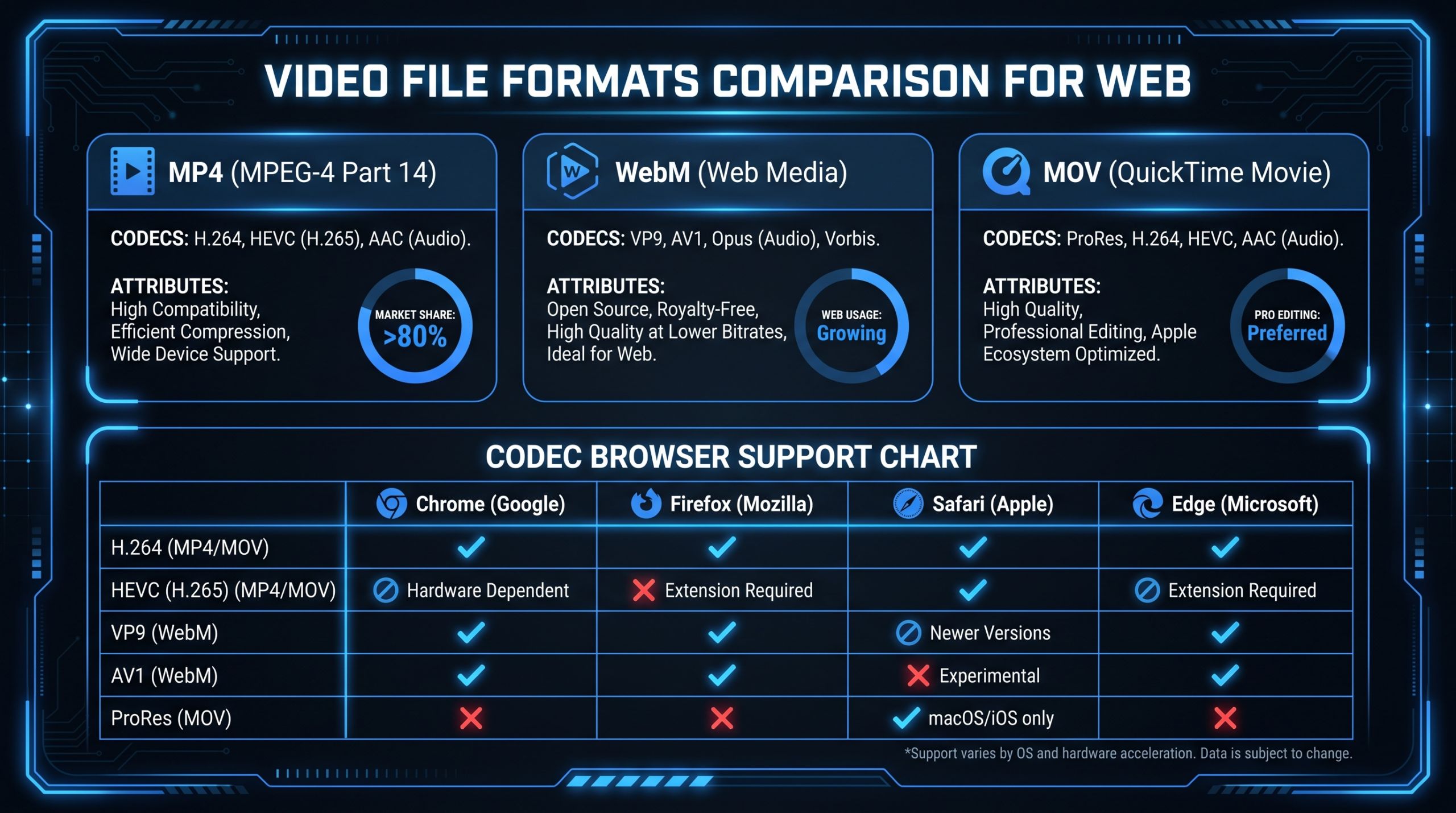
H.265 delivers roughly 40–50% better compression than H.264 at equivalent visual quality. The tradeoff: browser support is uneven. Safari supports H.265 natively; Chrome and Firefox require hardware decode support, which is present on most modern devices but not guaranteed. For web delivery where you cannot control playback hardware, H.265 is not a reliable replacement for H.264. Use H.265 for local storage, Apple device delivery, or contexts where you know the playback environment supports it.
WebM (VP9 and AV1): The Modern Alternative
WebM is an open-source container format developed by Google, designed specifically for web delivery and paired with royalty-free codecs. It is the best choice for reducing file size when you can serve a fallback for browsers that don't support it.
VP9: The Mature, Production-Ready Option
VP9 is well-supported in Chrome, Firefox, Edge, and Safari 17 and later (which covers most modern Safari users). At equivalent visual quality settings, WebM/VP9 files are typically 20–30% smaller than MP4/H.264 — a meaningful reduction for landing pages and high-traffic content pages where page load speed matters. VP9 encode times are moderate — comparable to H.264 — which makes it practical for production pipelines.
AV1: The Future-Proof High-Compression Option
AV1 is the next-generation royalty-free codec developed by the Alliance for Open Media (backed by Google, Mozilla, Microsoft, Apple, and others). It achieves 30–50% better compression than VP9 at the same quality level. Browser support is solid in Chrome and Firefox, and improving in Safari. The practical limitation is encode speed: AV1 is significantly slower to encode than H.264 or VP9 — up to 10–20× slower at the same quality tier with software encoders. For large video libraries where you encode once and serve many times, this cost is worth paying. For high-frequency production workflows where turnaround is the priority, VP9 is the more practical choice.
The Two-Source Pattern for Maximum Compatibility
The standard approach for modern web video is to serve both formats and let the browser pick:
<video autoplay muted loop playsinline>
  <source src="video.webm" type="video/webm">
  <source src="video.mp4" type="video/mp4">
</video>
Modern browsers download the first format they support and ignore the rest. Chrome, Firefox, and Edge pick WebM; older or more restrictive browsers (including iOS Safari pre-17) pick MP4. This requires maintaining two encoded files, but the file size and performance improvements on the WebM path justify the storage cost for high-traffic pages.
MOV, AVI, MKV: Why These Don't Belong on the Web
Several video formats appear frequently in production workflows but are poor — or outright unsupported — choices for web delivery. Understanding why helps you avoid the mistake of publishing them without conversion.
MOV (QuickTime)
MOV is Apple's native container format, common in macOS production workflows and camera outputs (Canon, Sony, and DJI cameras often record MOV). It is supported in Safari and Chrome on desktop, but Firefox support is inconsistent and relies on the installed codec, and iOS playback via web depends on the codec inside the MOV. The larger problem: MOV files from cameras and editing software typically use production codecs (ProRes, DNXHD) or high-bitrate H.264 that produces unnecessarily large files. Always transcode MOV to a properly compressed MP4/H.264 before web delivery.
AVI (Audio Video Interleave)
AVI is a legacy Microsoft format dating to 1992. It is not supported natively in any modern browser's HTML video element. AVI files are almost always large — an AVI file from a screen recorder or camera will typically be 5–20× the size of the same content encoded as MP4/H.264. There is no scenario where publishing AVI directly to the web is the right decision. If you receive AVI files from clients or legacy systems, transcode them immediately before use.
MKV (Matroska)
MKV is a flexible open container that can hold virtually any codec, multiple audio tracks, chapter markers, and subtitles — which makes it the preferred format for archiving and local media playback. However, HTML video element support for MKV is limited and inconsistent across browsers, with no reliable cross-browser playback. MKV is the right format for master file archiving; always re-encode to MP4 or WebM before web delivery.
FLV, SWF, and Flash Formats
Flash Video (FLV) and Shockwave Flash (SWF) were dominant web video formats through the 2000s. Adobe Flash reached end-of-life in December 2020 and is permanently blocked by all major browsers. If you have legacy FLV content, transcode it to MP4/H.264 using HandBrake or FFmpeg. There is no compatibility path for Flash content in modern browsers — it simply doesn't play.
Web Video Format Comparison Table
The table below compares all major formats across browser support, relative file size, encode speed, and web suitability. Use it as a reference when making format decisions for new projects.
Web Video Format Comparison
| Format / Codec | Browser Support | File Size vs. MP4/H.264 | Encode Speed | Web Suitability |
|---|---|---|---|---|
| MP4 / H.264 | All browsers — Chrome, Firefox, Safari, Edge, iOS Safari | Baseline | Fast | ✅ Best universal default |
| MP4 / H.265 (HEVC) | Safari native; Chrome/Edge with hardware decode; Firefox limited | ~40–50% smaller | Moderate–Slow | ⚠️ Limited — not universal |
| WebM / VP9 | Chrome, Firefox, Edge; Safari 17+ | ~20–30% smaller | Moderate | ✅ Best with MP4 fallback |
| WebM / AV1 | Chrome, Firefox; Safari improving | ~40–50% smaller | Very Slow | ✅ Future-proof; high encode cost |
| MOV / ProRes | Safari (primary); Chrome partial; Firefox limited | Much larger — production quality | Fast | ❌ Production master only |
| AVI | None — not supported in HTML video element | Much larger | N/A | ❌ Do not publish to web |
| MKV | Limited — inconsistent across browsers | Varies by codec inside | Varies | ❌ Archive/local only |
| OGG / Theora | Chrome, Firefox; not Safari | Larger than H.264 | Fast | ❌ Outdated; VP9 is the better open alternative |
| FLV / Flash | None — Flash blocked in all modern browsers | N/A | N/A | ❌ Dead format — transcode immediately |
Browser support data is based on Can I Use's video format compatibility tables, which are updated as browser releases ship. Verify current support status there before making delivery decisions — browser support for newer codecs like AV1 is actively improving.
Video Format by Use Case
The optimal format depends on where the video is published and the priorities for that context. Landing page background videos care about load speed; product demo pages care about quality and analytics; social uploads care about universal compatibility. The table below maps common SaaS marketing use cases to format recommendations.
Web Video Format by Use Case
| Use Case | Recommended Format | Key Constraint | Target File Size |
|---|---|---|---|
| Landing page hero / background loop | WebM/VP9 + MP4/H.264 fallback | Minimize page load; autoplay muted; under 5 MB | < 5 MB |
| Product demo page (hosted player) | MP4/H.264, upload to Wistia or Vimeo | Quality and analytics matter most; platform handles delivery | 10–100 MB (platform re-encodes) |
| SaaS homepage explainer | WebM/VP9 + MP4/H.264 fallback | Fast load + full browser compatibility including iOS | 3–10 MB |
| Help center / knowledge base | MP4/H.264 self-hosted or Loom/Wistia | Reliability over speed; users need it to always work | 5–30 MB |
| YouTube channel upload | MP4/H.264 at highest available quality | YouTube re-encodes; upload highest quality source you have | Upload original |
| LinkedIn / social media upload | MP4/H.264 | All platforms accept MP4 and re-encode; keep under platform limits | Per platform limit |
| Webinar recording / screen recording | MP4/H.264 with high CRF (28–32) | Screen content compresses very well; prioritize small file size | 5–50 MB per hour |
| Archive / master file | MOV/ProRes or MKV (lossless) | Maximum quality for future re-editing; no size limit | No limit |
For teams producing product demo videos or SaaS video content at scale, format and compression standards should be codified in your content ops workflow rather than decided per video. This is one of the workflow elements covered in the VEC video editing service — writers, editors, and motion designers follow a consistent export spec so marketing receives publish-ready files without a format conversation every time.
How to Compress Video for Web
Selecting the right format is necessary but not sufficient. Compression settings determine whether your MP4/H.264 is 4 MB or 400 MB — both are technically the same "format." Here is what controls output size and quality.
The Core Export Settings
Resolution: 1080p (1920×1080) is the standard for web video content in 2026. 4K is rarely necessary for web delivery — it increases file size dramatically for an imperceptible quality difference on most screens and on any video smaller than full-viewport. Export 4K only when the content specifically benefits from it (real estate walkthroughs, high-detail product close-ups) and the hosting platform supports adaptive bitrate streaming to handle the large file gracefully.
Bitrate (constant or variable): The amount of data processed per second. For 1080p web content, common targets are:
- 2–4 Mbps for talking-head interviews, screencasts, static-background demos
- 4–8 Mbps for fast-motion content, animation, complex scene changes
- Use variable bitrate (VBR) over constant bitrate (CBR) for web delivery — VBR allocates more bits where the content needs them and saves bits on simple frames
CRF (Constant Rate Factor): A quality control setting used in x264 and x265 encoders. Lower numbers mean higher quality and larger files. For web delivery with x264 (H.264):
- CRF 18–22: Excellent quality, larger files — use for hero demo videos where quality is the priority
- CRF 23–26: Good quality at reasonable file size — standard for most web video
- CRF 27–32: Acceptable for screencasts and low-motion content where visual fidelity is less critical
Frame rate: 24 fps for cinematic content; 30 fps for standard web video; 60 fps for fast-motion demos or interactive product walkthroughs. Higher frame rates proportionally increase file size. Default to 30 fps for web unless there's a specific reason for higher.
Audio: AAC codec at 128 kbps stereo is sufficient for speech-heavy content. Use 192–256 kbps for music-heavy or high-production content where audio quality is part of the brand experience.
Tools for Web-Optimized Encoding
- HandBrake — Free, cross-platform, includes excellent web-optimized presets for H.264 and H.265. The fastest path to a properly compressed web MP4 for most teams.
- FFmpeg — Command-line, used in production automation pipelines. Can encode to any format, handle batch jobs, and integrate into CI/CD workflows. The tool of choice for technical teams processing video at scale.
- Adobe Media Encoder — Part of Adobe Creative Cloud, tightly integrated with Premiere Pro and After Effects. Strong preset library including web delivery settings for both H.264 and WebM.
- DaVinci Resolve Deliver page — Built into Resolve's free version; well-suited for H.264 and H.265 web delivery exports from finished timelines.
Screencasts and SaaS Product Demos Compress Differently
Screen recordings and product demos of SaaS interfaces compress dramatically better than camera footage. A SaaS dashboard walkthrough can often use CRF 28–32 with no visible quality loss because the screen content — flat colors, text, UI elements — has far less noise and complexity than live-action footage. Apply a dedicated preset for screencasts rather than the same settings you use for interview or brand video content. The file size difference is typically 3–5× in favor of the screencasts, which matters significantly for page load performance on product pages.
Video Hosting and Format Implications
Where your video lives determines what format you need to provide and how much format optimization work falls to you versus the hosting platform.
Self-Hosted (Your Server or CDN)
Self-hosting gives you full control over format, bitrate, and delivery — but puts all the optimization work on you. Use the two-source pattern (WebM/VP9 + MP4/H.264 fallback) and serve from a CDN to ensure acceptable load times globally. Best for: landing page background videos and ambient loops where precise load speed and autoplay behavior matter and you want zero dependency on a third-party player.
Managed Video Hosting (Wistia, Vimeo Pro)
Wistia and Vimeo accept your high-quality MP4 or MOV upload and handle the rest: transcoding to multiple formats and bitrates, adaptive bitrate streaming, global CDN delivery, and player analytics. Upload the best-quality source file you have — the platform generates optimized delivery versions. Both platforms support engagement heatmaps, A/B testing, and CRM integrations that are difficult to replicate self-hosted. For SaaS product demo pages and content where analytics inform GTM decisions, managed hosting justifies the cost. You can see how VEC integrates hosted player delivery into the production and delivery workflow.
YouTube and Social Platforms
YouTube, LinkedIn, X, Instagram, and TikTok all re-encode your upload to their own delivery format optimized for their player and CDN. Your input format matters less here — upload the highest-quality MP4/H.264 (or MOV) you have, and the platform handles format optimization for different devices and connection speeds. For YouTube specifically, the platform generates AV1 versions for modern browser playback automatically, so you get the compression benefit without the encode cost on your side.
The Right Hosting Strategy for SaaS Marketing Teams
Most SaaS teams use a hybrid: managed hosting (Wistia or Vimeo) for product demo pages, case studies, and any video where engagement analytics drive decisions; self-hosted compressed MP4/WebM for hero backgrounds and ambient video where load speed and seamless autoplay are the priority; YouTube for top-of-funnel content, organic search, and social distribution. Separating these by use case prevents the common mistake of loading a full Wistia player for a 3-second background loop, or self-hosting a product demo without the analytics infrastructure to see how people engage with it.
Frequently Asked Questions
What is the best video format for a website?
MP4 with H.264 encoding is the best video format for websites because it works in 100% of browsers — including iOS Safari, which represents a significant share of mobile traffic and cannot be replaced by alternative browsers on Apple devices. If you want smaller files for modern browsers, serve WebM/VP9 as the primary source with MP4/H.264 as a fallback using the HTML5 video element's source list.
Can I use WebM instead of MP4 on my website?
You can use WebM as the primary format for Chrome, Firefox, and Edge users, but you still need an MP4 fallback for Safari — particularly iOS Safari, which does not support WebM. The correct implementation is to list both sources in the HTML5 video element: <source src="video.webm" type="video/webm"> followed by <source src="video.mp4" type="video/mp4">. Never rely on WebM alone if you need universal compatibility.
What video format should I use for landing page videos?
For landing page background or hero videos, use WebM/VP9 as the first source and MP4/H.264 as the fallback, with the total file size under 5 MB to avoid page load impact. Set the video to autoplay, muted (required by browsers for autoplay), loop, and playsinline (required for iOS inline playback). For featured product demo videos on landing pages where quality matters, upload MP4/H.264 to Wistia or Vimeo and embed their player — adaptive bitrate streaming handles file size automatically while preserving quality.
Does video format affect website SEO or page speed?
Yes — through page load time. Large video files or poor compression settings slow down Largest Contentful Paint (LCP) and overall page speed, which affects both Core Web Vitals scores and Google ranking signals. Use properly compressed MP4/H.264 or the WebM + MP4 two-source pattern, lazy-load videos that appear below the fold, preload only metadata (not the full file) for videos above the fold, and serve from a CDN. The format itself is less important than the combination of compression quality, file size, and delivery method.
What's the difference between a video container and a codec?
A container (MP4, WebM, MOV) is the file wrapper that holds the video stream, audio stream, and metadata together. A codec (H.264, VP9, AV1) is the compression algorithm that encodes and decodes the video data inside the container. The same MP4 container can hold video encoded with H.264 or H.265 — resulting in very different file sizes and browser compatibility. For web delivery, the most universally compatible combination is MP4 container + H.264 codec, often written as MP4/H.264.
Scaling Video Production for SaaS?
VEC's dedicated editing teams handle format standardization, compression specs, and delivery workflow as part of every engagement — so your marketing team receives publish-ready files, not a format decision every Tuesday. Growth plans start at $5K/mo with a guarantee: double your video output in 90 days or month 4 is free.
Book a Free Strategy Call See How It Works See Pricing